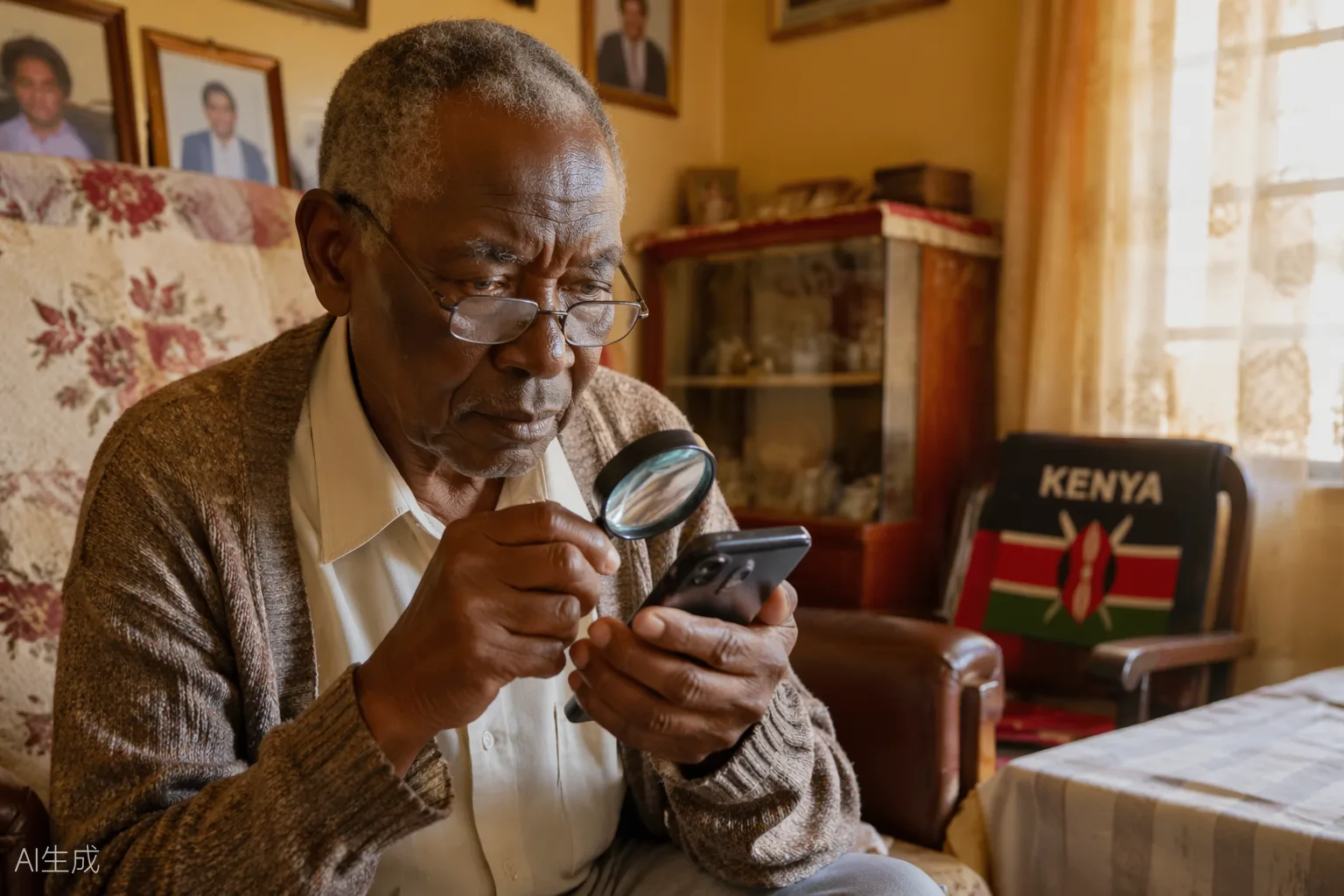
"Your phone already has tools built specifically to help older adults. Most people simply do not know they are there — and no one has ever shown them how to turn them on."
Does your smartphone sometimes feel more frustrating than helpful? Maybe the words are too small. Maybe the screen feels crowded. Or maybe you worry about pressing the wrong button?
You are not alone. And the good news is this: you do not need to buy a new phone. The phone you already own has features specifically designed to help older adults like you.
These features are called Accessibility Settings — and they are built into Android phones (Samsung, Tecno, Infinix, Itel, Oppo) as well as iPhones. Here is how to find them and switch them on — one simple step at a time.
After Reading This, You Will Know How To:
- Make all text on your phone larger and easier to read
- Switch on high contrast so you can see the screen clearly — even in sunlight
- Send WhatsApp messages using your voice — no typing needed
- Set up Emergency SOS so your phone can call for help automatically
- Clean up your home screen so it is simple, calm, and easy to navigate
Make Text Bigger and Easier to Read
If reading WhatsApp messages or contact names feels like a strain on your eyes, this is the first setting to change. Android and iPhone both allow you to increase the size of text across the whole phone — in WhatsApp, messages, contacts, and menus.
According to the World Health Organization, over 2.2 billion people globally have a near or distance vision impairment, and many cases are age-related. Larger text reduces eye strain and makes reading comfortable — even outdoors in bright light.
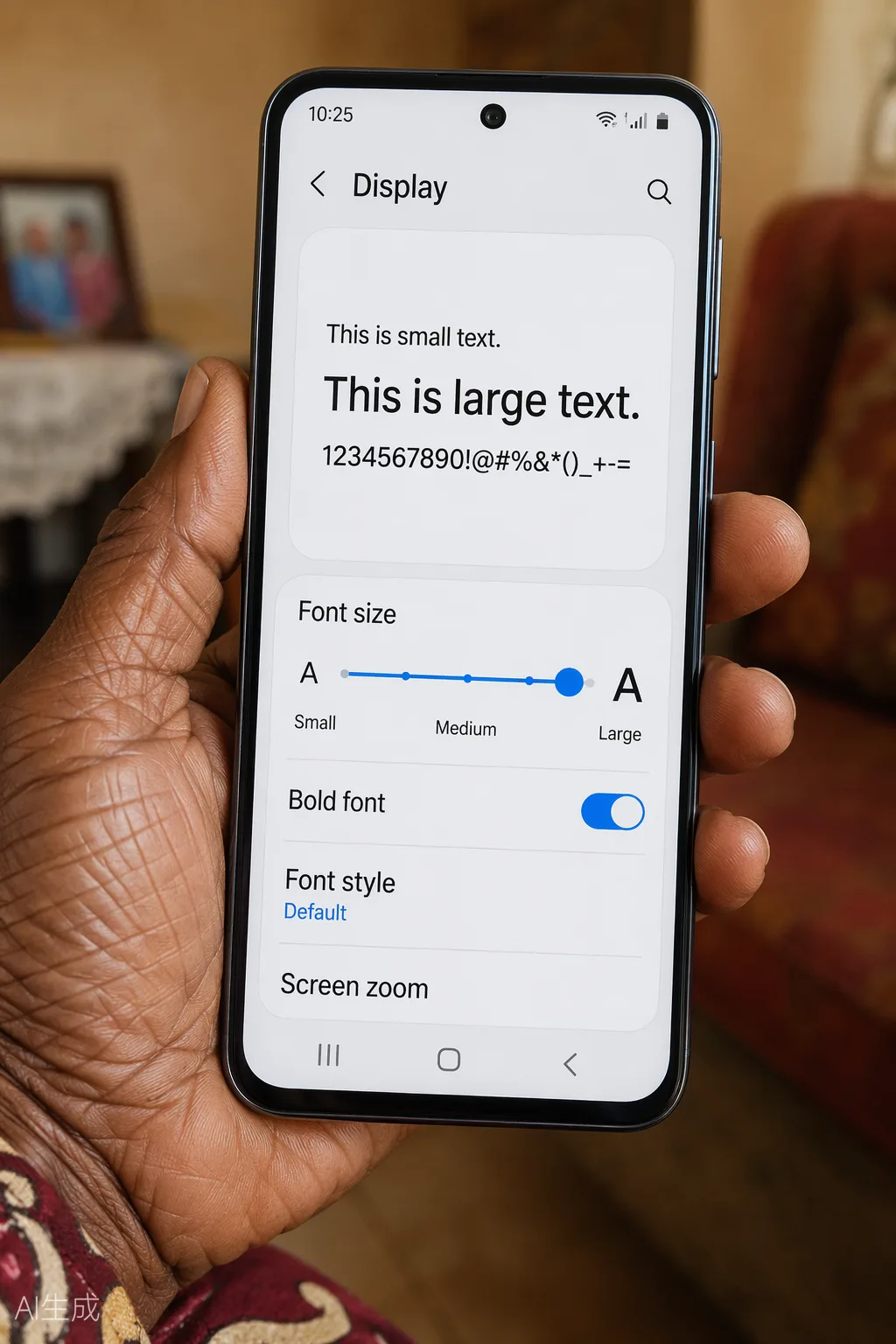
📱 On Android (Samsung, Tecno, Infinix, Oppo, Itel)
How to Increase Text Size — Android
- Open Settings on your phone
- Tap Display
- Tap Font Size and Style
- Move the slider to the right until the text feels comfortable
- Optional: Turn on Bold Font to make letters darker and clearer
🍎 On iPhone
How to Increase Text Size — iPhone
- Open Settings
- Tap Accessibility
- Tap Display & Text Size → Larger Text
- Turn on Larger Accessibility Sizes
- Drag the slider to your preferred size
Increasing font size takes less than one minute, requires no technical knowledge, and can make your phone feel dramatically more comfortable to use — immediately.
Turn On High Contrast for Better Visibility
Some phone screens use pale, light-coloured text that can be very hard to read — especially in bright sunlight or in a dimly lit room. High Contrast mode makes text darker, thicker, and much easier to read.
📱 On Samsung
High Contrast — Samsung
- Open Settings → Accessibility → Visibility Enhancements
- Under Display Mode, select High Contrast
- Also turn on: High Contrast Fonts and High Contrast Keyboard
📱 On Other Android Phones
High Contrast — Android
- Open Settings → Accessibility
- Look for High Contrast Text or Colour and Motion
- Turn on High Contrast Text
🍎 On iPhone
High Contrast — iPhone
- Open Settings → Accessibility → Display & Text Size
- Turn on Increase Contrast
- Also consider: Reduce Transparency
High Contrast mode does not damage your battery or phone. You can switch it on and off any time. Many people leave it on permanently once they try it — because it simply makes the screen easier to read.
Use Your Voice Instead of Typing
Typing on a small touchscreen keyboard can be genuinely difficult — especially if you have arthritis, trembling hands, or simply find the buttons too small. You do not need to type at all.
Every modern Android phone and iPhone has built-in voice-to-text functionality. You speak, and your phone automatically types your message for you — in WhatsApp, SMS, Notes, and even email.
🎙️ How to Use Voice Typing — Any Android Phone
Send a WhatsApp Message With Your Voice
- Open WhatsApp and go to the chat you want to reply to
- Tap the message box at the bottom
- Look for the small microphone icon on your keyboard (bottom right)
- Tap the microphone and speak slowly and clearly
- Your words will appear as text automatically
- Tap Send when you are done
- Works in WhatsApp, SMS, Notes, and email
- Supports Kiswahili and English on most phones
- Especially helpful for arthritis, hand tremors, or poor eyesight
- You can also send WhatsApp Voice Notes — hold the microphone inside WhatsApp and speak
Set Up Emergency SOS — For Your Safety
This is the most important setting in this article. Emergency SOS allows your phone to automatically call emergency services or alert your family — simply by pressing the power button several times quickly.
You do not need to unlock your phone. You do not need to find the phone app. In a fall, a medical emergency, or a robbery — pressing the button quickly is all that is required.
📱 Setting Up Emergency SOS — Samsung Galaxy
Emergency SOS on Samsung
- Open Settings → Safety and Emergency
- Tap Emergency contacts — add a trusted family member's number
- Tap Medical info — add your blood type and conditions
- Tap Emergency SOS and turn it on
- To activate: press the power button 5 times rapidly
🍎 Setting Up Emergency SOS — iPhone
Emergency SOS on iPhone
- Open Settings → Emergency SOS
- Turn on Call with Side Button
- Turn on Share Emergency Contacts
- To activate: press and hold the side button and a volume button together
When activated, Emergency SOS attempts to call the emergency number for your region — 999 (Police) or 112 (General emergency, works on most Kenyan networks including Safaricom and Airtel). It can also share your location with your emergency contacts.
Simplify Your Home Screen
A cluttered screen with dozens of apps and tiny icons can feel genuinely overwhelming. A cleaner screen means less stress, fewer mistakes, and faster access to what you actually use.
📱 Use Easy Mode — Samsung Galaxy
Enable Easy Mode on Samsung
- Open Settings → Display → Easy Mode
- Turn it on — your home screen immediately becomes larger and simpler
- Select which apps appear on your simplified home screen
📱 Remove Clutter — Any Android Phone
- Long-press any unused app icon → tap Remove from Home Screen
- Move your top 5 apps (WhatsApp, Calls, Camera, Clock, Messages) to the first screen
- Use a simple, plain wallpaper so icons stand out clearly
- Increase icon size: Settings → Display → Icon Size (available on Samsung)
- Turn off notification badges for apps that are not important to you
Most seniors regularly use only five apps: Calls, WhatsApp, Camera, Clock, and perhaps Facebook. Put those five on your first screen, make them large, and let everything else wait. Technology should feel calm — not chaotic.
Growing older does not mean being left behind by technology. Your phone is already designed to adapt to you — most people have simply never been shown how.
"At Senior Citizens Tech Haven, we believe technology should empower older Kenyans — not intimidate them. And sometimes, the smallest settings make the biggest difference."
★ Key Takeaways — 5 Things to Do Today
- Increase your font size — Settings → Display → Font Size
- Turn on High Contrast — Settings → Accessibility → Visibility Enhancements
- Use your microphone to type WhatsApp messages — no keyboard needed
- Set up Emergency SOS and add a family member as your emergency contact
- Simplify your home screen — fewer apps, bigger icons, plain background
❓ Frequently Asked Questions
Prefer listening? Hear this topic on the Senior Citizens Tech Haven Podcast — available on Spotify.